Help
Troubleshooting
Emails not arriving, forms not sending, uploads, background jobs, payments, caching and conflicts.
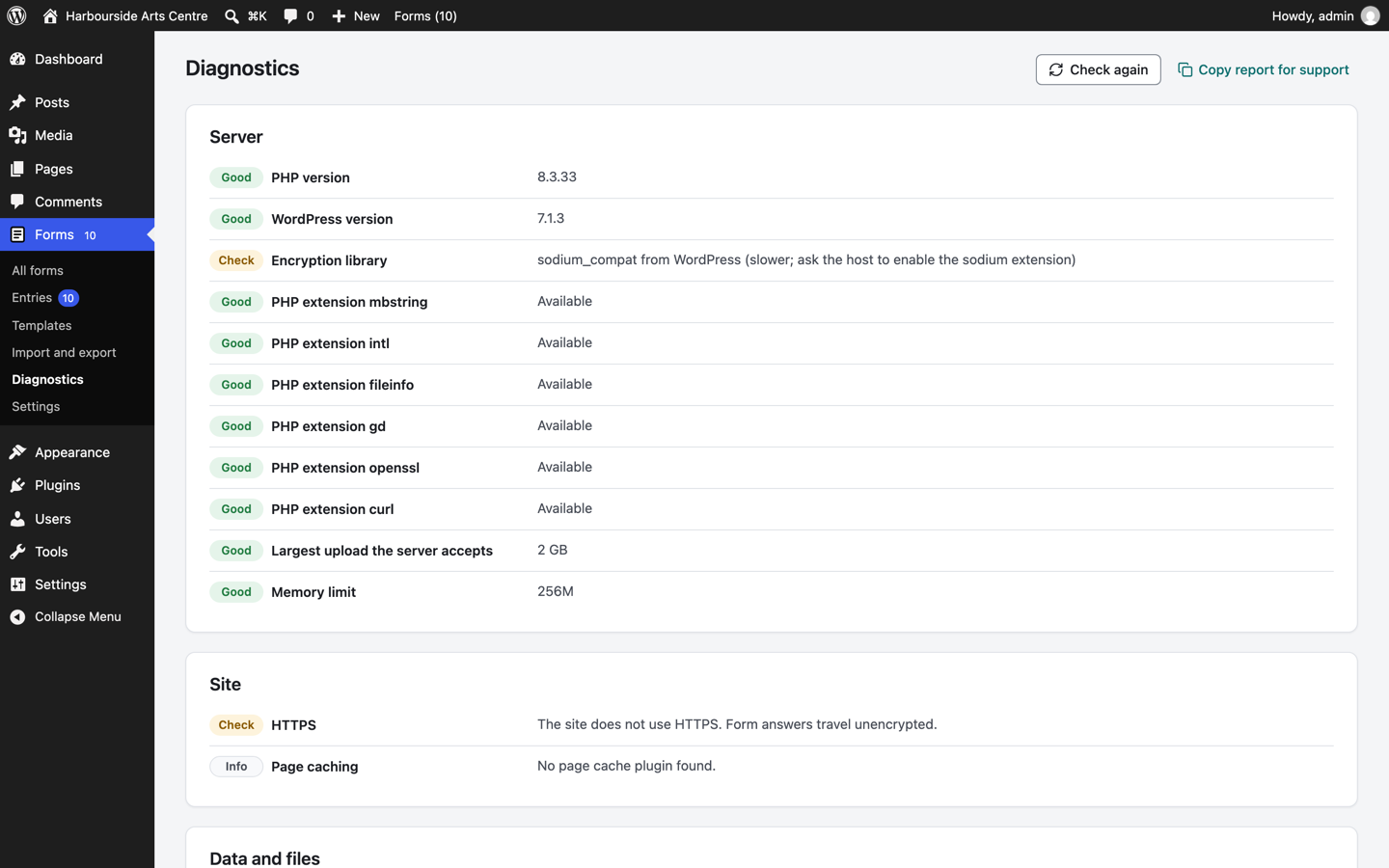
Start with Forms, Diagnostics. Most problems on shared hosting show up there with a suggested fix. Copy report for support copies the full list for a support request.
Emails do not arrive
- Open the entry. The timeline says whether each email was handed to the mail transport, failed (with the reason) or is waiting for another attempt.
- If it failed: the reason usually comes from the mail transport, for example an SMTP login problem. Fix it and select Try again on the entry.
- If it was accepted but did not arrive: the receiving service filtered it. Check spam folders, use a sender address on your own domain, and set up an SMTP plugin with a mail service that has SPF and DKIM for your domain. See Emails.
- If nothing is listed: check the email's When setting and its condition, and that it is turned on.
The form does not send
- "This page was open for a long time": the page's security token was refreshed; press Send again. If it happens every time, a cache or optimisation plugin may be changing the page's scripts; exclude the form's page from JavaScript delay or combining.
- "That was very quick": the form was sent faster than the minimum time in Spam protection. Lower it if your form is very short.
- "Too many attempts from this connection": the per minute limit was reached; wait a minute, or raise the limit for forms used by many people on one network.
- Nothing happens when pressing Send: open the browser's console. A script error from another plugin can stop all scripts on the page. Turn on Send without reloading the page: No, always reload (Submission group) to rule out conflicts with other scripts.
Uploads fail
- "This file is larger than ... MB": raise the field's limit, and if the server's limit is lower (shown in Diagnostics), ask your host to raise
upload_max_filesizeandpost_max_size. - "The content of this file does not match its type": the file was renamed from another type. Ask the visitor to save it in the right format.
- Private storage warning in Diagnostics: see File uploads for protecting the folder on Nginx or moving it outside the website.
Emails, integrations or payments are late
They run in the background through WP-Cron, which runs when someone visits the site. On quiet sites, or when your host disables WP-Cron, set up a real cron job that calls wp-cron.php every five minutes (your host's control panel has a cron jobs page). Diagnostics shows when background processing last ran. Run waiting jobs now in Diagnostics runs them at once. The Jobs list shows failed and waiting jobs with their last error; a failed job can be run again at once, and a waiting one cancelled. The Log keeps the plugin's own messages (with keys and passwords hidden) for 30 days; each entry's timeline keeps what happened to that entry.
Payments stay unpaid
- Check that the webhook addresses from Settings, Payments are added in the Stripe or PayPal dashboard, with the signing secret or webhook id saved here.
- Open the entry and select Check with the provider.
- In test mode, use the providers' test cards and sandbox accounts; real cards do not work in test mode and test cards do not work in live mode.
Cached pages
Forms work on cached pages: they fetch a fresh security token when needed. If a cache plugin delays or combines scripts, exclude the plugin's scripts (flavonto-forms/assets/js/) from delay and combining.
Conflicts
To check for a conflict, switch to a default theme and turn off other plugins on a staging copy of your site, then turn them back on one at a time. Note the plugin that causes the problem and include it in your support request.
Starting over with the settings
Administrators find Reset settings on the Data tab of Settings. Reset settings puts every setting back to its default and keeps saved keys and passwords; Reset settings and keys also removes saved API keys, payment keys and challenge secrets, so payments and integrations stop until they are entered again. Forms, entries and files are never touched. Undo the last reset brings the previous settings back, with the keys when they were removed.
New forms take their language, how dates are shown, and whether entries are stored from Settings, Form defaults. Each form can still change these for itself.
Getting help
Send the Diagnostics report, the form export (Import and export), what you expected and what happened, to Flavonto support. See Getting support for what to include and how to report a security problem.