Managing entries
Entries
Views, search, filters, labels, statuses, notes, the timeline, editing, resending and exports.
Open Forms, Entries and choose a form, or All forms to see the entries of every form you may see in one list with a Form column. The number of unread entries also shows next to the Forms menu and in the admin bar.
Views
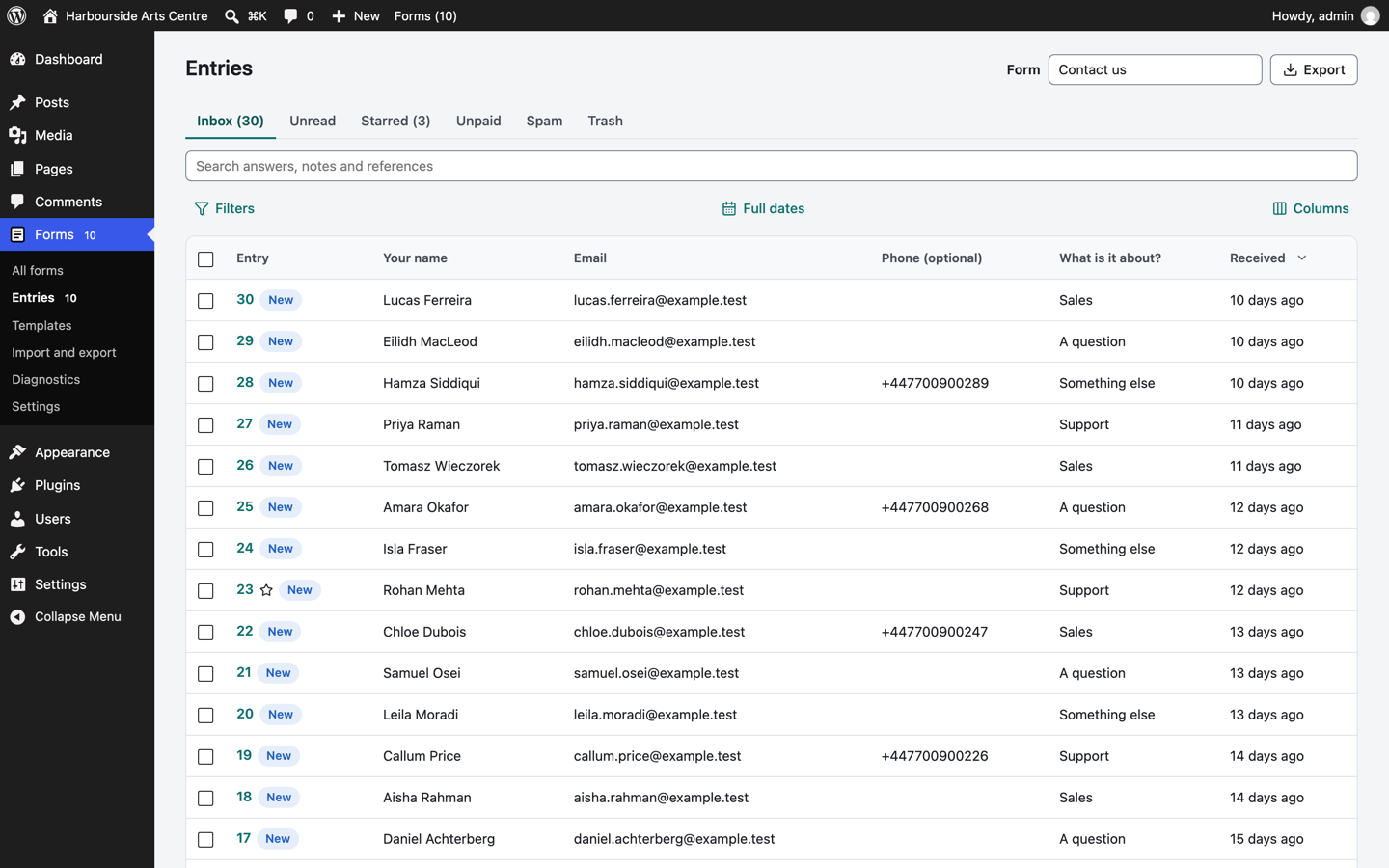
| View | Shows |
|---|---|
| Inbox | Every entry that is not spam or in the trash |
| Unread | Entries nobody has opened yet |
| Starred | Entries someone starred |
| Unpaid | Entries whose payment is not confirmed |
| Spam | Entries the spam checks kept for review (when the form keeps spam instead of refusing it) |
| Trash | Entries moved to the trash. They stay until someone deletes them permanently |
Finding entries
- Search looks in every stored answer, the entry reference, your team's notes, and the entry number when you type a number.
- Filters narrow by date range, status, label, payment (paid, waiting, failed, refunded or cancelled), test entries (show, hide or only) and by answers: pick a field, a comparison (is, contains, is greater than and so on) and a value. You can combine several answer filters.
- Columns chooses which answers show in the list and in which order. Your choice is remembered per form in your browser.
- Sorting: select a column heading to sort by it; select it again to reverse the order.
- Full dates shows the date and time with the time zone instead of "2 hours ago". The choice is remembered in your browser.
Keyboard
On a row of the list, R marks the entry read and U unread. When rows are selected, the keys apply to all of them. On an open entry the same keys work for that entry. The keys do nothing while you type in a field.
Working with several entries
Select entries with the checkboxes (or the box in the header for the whole page). The bar that appears can mark them read or unread, star them, mark them as spam or not spam, add a label, set a status, export them, move them to the trash, and from the trash restore or delete them permanently.
Not spam (and send emails) moves entries back to the inbox and runs their emails and integrations, which were skipped while they were spam.
One entry
Opening an entry marks it as read. The page shows:
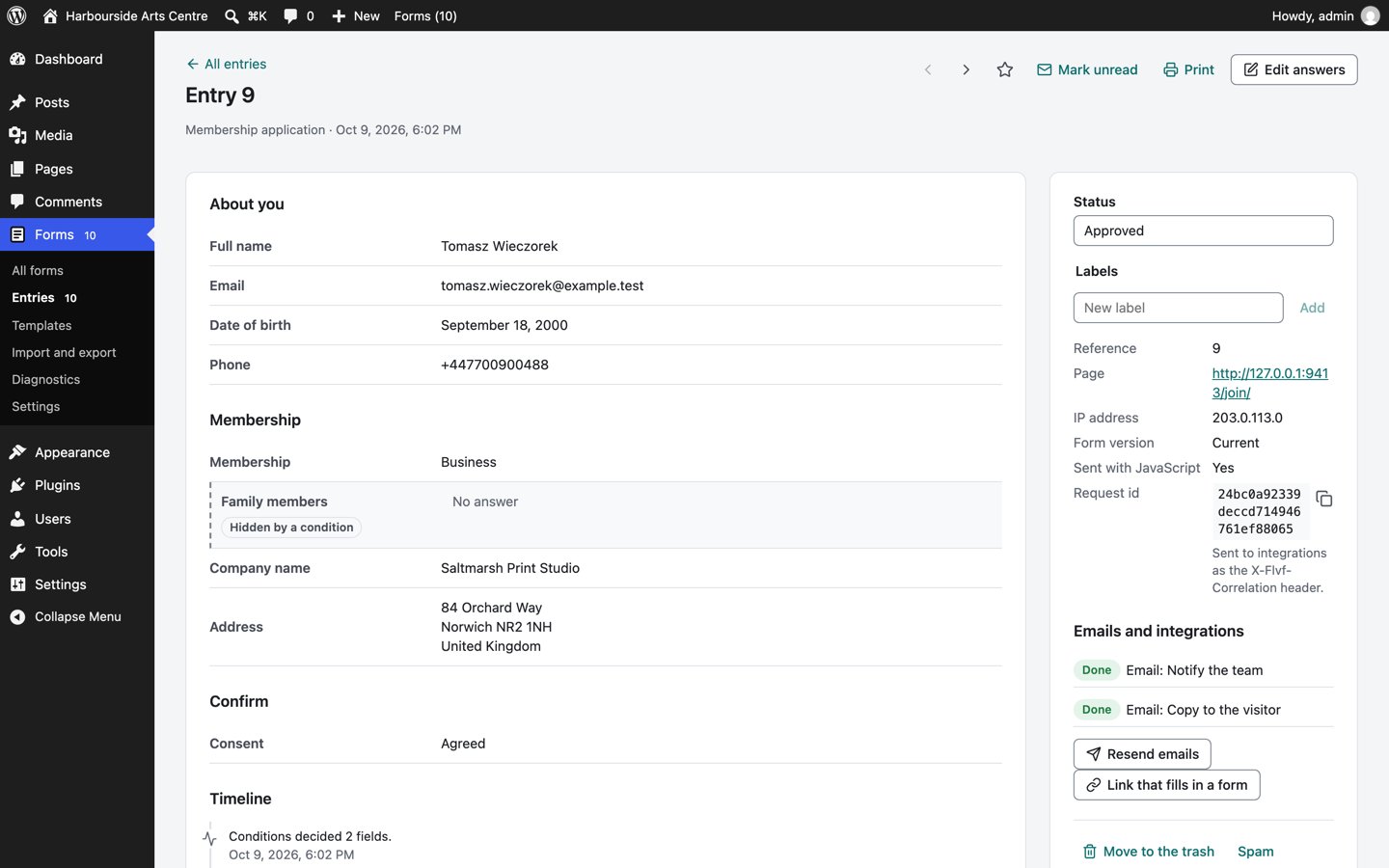
- Answers as the visitor saw them, in form order, grouped under the form's step and section headings. Answers hidden by a condition are marked. Answers stored encrypted show a lock.
- Timeline: when the entry arrived, every email (queued, handed to the mail transport or failed, with the reason), resends, every integration, payment events, status changes, edits with their before and after values, exports, imports and notes, with who did what and when. Details open with a disclosure button.
- Status: your own workflow, for example New, In review, Approved, Rejected, Waitlist. Change the list in Settings, Entries. Emails can be sent when the status changes.
- Labels: tags you create per form, such as VIP or Follow up.
- Notes for your team, shown in the timeline. You can delete your own notes.
- Details: reference, payment, the page the form was on, the user, IP address and browser (when stored), and whether the entry was sent with the current version of the form.
- Emails and integrations: each one with its result. Failed ones can be tried again; integrations can be run again.
Use the arrows at the top to move to the next or previous entry.
Resending emails
Resend emails lets you choose which of the form's emails to send again, and optionally send them to other addresses instead of the usual recipients.
Editing answers
Edit answers opens the answers in the form's own fields. The changed answers are checked with the form's rules (a valid email address, the allowed choices, number limits and so on). If any is not valid, nothing is saved: the problems are listed above the form with links to the fields, and shown next to each field.
Saving records in the timeline which answers changed, with the value before and after each change (fields stored encrypted are recorded without their values). Files, signatures and amounts that were paid cannot be changed here. When an entry is anonymised or its answers are erased, the details of its timeline are erased too.
Printing
Print prints the entry's answers and timeline without the dashboard around them.
Exports
Select Export above the list.
| Format | Notes |
|---|---|
| Excel (.xlsx) | Opens in Excel, Numbers, LibreOffice and Google Sheets |
| Excel 97 to 2003 (.xls) | For older software |
| CSV | Comma, semicolon or tab separated, with a byte order mark so Excel reads accents correctly |
| OpenDocument (.ods) | LibreOffice and other open office suites |
| Web page (.html) | A readable table |
| JSON | For developers |
You can export the selected entries, the entries as currently filtered, or all entries except spam, trash and test entries. With All forms chosen above the list, one file holds the entries of every form, with a Form column.
| Option | Choices |
|---|---|
| Columns | As in the list, every field, or fields you choose. The reference, date and status are always included |
| Dates | Date cells that spreadsheets can sort and calculate with, or ISO text such as 2026-10-12 and 2026-10-12T14:30:00+01:00 |
| Names and addresses | One column each, or a column for each part (first name, last name, street, town and so on) |
| Repeating groups | All rows of a group in one cell, or one spreadsheet row per row of the group, with each of its fields in its own column |
Your choices are remembered per form in your browser. Each entry included in an export of up to 1,000 entries gets an "exported" line in its timeline; larger exports are recorded once in the plugin's log.
Large exports run in the background in chunks with a progress bar, so they do not time out. The file is kept for 24 hours and only the person who made it (or an administrator) can download it. Deleting a form together with its entries also deletes its export files at once.
Answers that start with =, +, - or @ get a leading apostrophe in spreadsheet formats so spreadsheet programs show them as text rather than running them as formulas. You can turn this off in Settings, Data, but only do so if you trust everyone who fills in your forms.
Who can see entries
Administrators can do everything. Other roles can be given these permissions in Settings: manage forms, view entries, edit entries, delete entries, export entries, import, manage integrations and manage settings. Each form can also limit its entries to selected roles (Storage and privacy group in the form settings).