Building forms
Accessibility
What the forms and the builder do for people using keyboards, screen readers, zoom and touch, and what you need to do as the author.
Flavonto Forms aims at the Web Content Accessibility Guidelines (WCAG) 2.2 level AA for the forms visitors fill in and for the builder and entries screens. Our automated tests run axe-core checks on a set of test forms (contact, quote, steps, repeating groups, uploads, logic, Arabic right to left, save and resume, signature), on every admin screen and on popups, in Chromium, WebKit and a phone profile, and check that every test form fits a 320 pixel wide screen. Automated checks find only part of the possible problems, and how accessible a form is also depends on the labels, instructions and colours you choose.
Built into every form
- Every field has a real label connected to it; a hidden label is still read by screen readers.
- Required fields are marked in text as well as with an asterisk, or optional fields are marked instead (your choice).
- Groups of choices are grouped with their question.
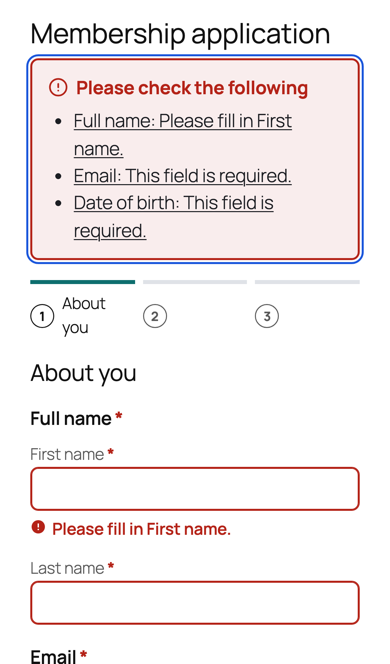
- Errors appear next to the field in text with an icon, are connected to the field, and are announced. When sending fails, a list of problems at the top takes focus, and each item links to its field.
- Help text and hints are read with the field.
- Steps move focus to the step heading and announce "Step 2 of 4".
- Uploads announce progress and results; repeating groups announce added and removed rows and move focus sensibly.
- Confirmations are announced and take focus. Timed redirects show how long is left and offer a link to go at once.
- Popups are native dialogs that keep focus inside and return it on close.
- Keyboard focus is always visible. Colours respect high contrast modes (forced colours), and animation stops when visitors ask for reduced motion.
- Text inputs are at least 16 pixels on touch screens, so phones do not zoom in, and touch targets are at least 44 pixels.
- Forms work without JavaScript, and reflow to a 320 pixel wide screen (the same as 400 percent zoom) without sideways scrolling.
- Autocomplete hints are set for names, emails, phones and addresses so browsers and password managers can fill them in.
In the builder and entries screens
- Every action is available from the keyboard. The Outline tab is the keyboard way to select, move and remove elements (see The builder).
- Dialogs trap focus, close with Escape and return focus.
- Menus, tabs and switches use the matching roles and keys.
- Messages appear in a polite live region and never as the only place an error is shown.
- The screens follow your system's light or dark setting, or your own choice in Settings, Interface.
What you can do as the author
- Write labels that say what to enter. Use the description for format examples ("For example 31 12 1990").
- Do not hide labels unless the field is obvious from what is around it.
- Keep colour contrast at 4.5 to 1 for text if you change colours; the High contrast design is a safe starting point.
- Prefer the simple sum challenge, or no challenge, over the image challenge.
- Use Test logic to check that required fields are never hidden from the visitor.
- Use Check in the builder before publishing. It stops a field without any label from going live, and warns about: labels hidden behind a placeholder, long lists of single choices, pictures without a description when their text is hidden, colours with too little contrast, browser autofill turned off for names, emails, phones and addresses, the image challenge, choices that move on or send the form by themselves without saying so, and messages that disappear in under 20 seconds.
- Test the form yourself with only a keyboard, and with a screen reader if you can.