Building forms
Conditional logic
Show and hide fields, sections and steps, make fields required on a condition, and route emails and integrations.
Conditions compare the visitor's answers while they fill in the form, and the server applies the same rules again when the form is sent. Hidden fields are not validated, stored, emailed or sent to integrations.
Where conditions can be used
| Element | Condition |
|---|---|
| Fields, sections, columns, repeating groups, text blocks | Show or hide |
| Steps | Show or skip the step |
| Fields | Required only when |
| Emails | Send only when |
| Email recipients | Send to different addresses depending on answers |
| Confirmations | Choose which confirmation is shown |
| Integrations, user and post actions | Run only when |
| Payments | Take a payment only when |
Building a condition
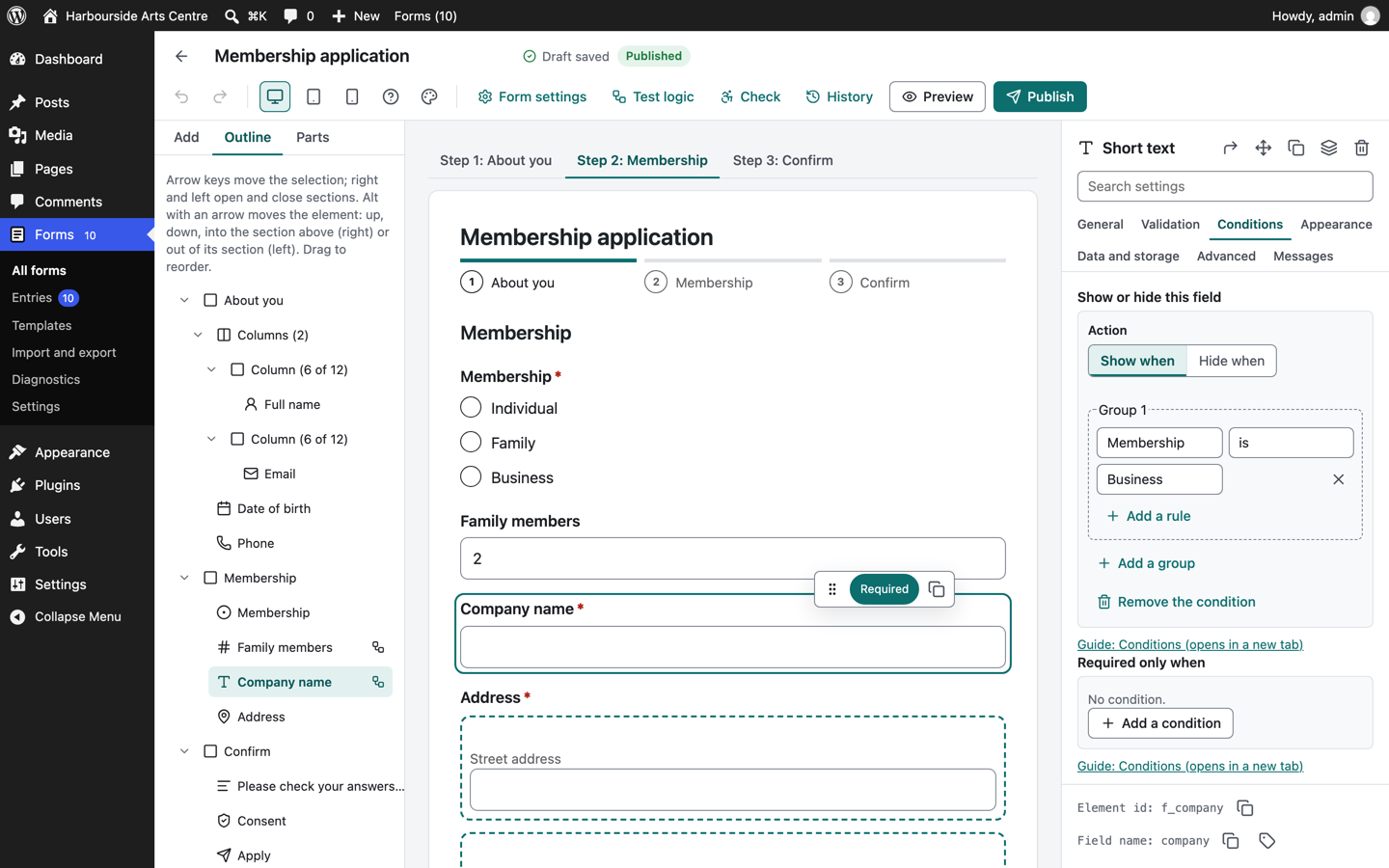
- Select the element and open its Conditions settings.
- Select Add a condition.
- Choose Show when or Hide when.
- Pick a field, a comparison and a value.
A condition can have several groups of rules. Inside a group you choose whether all rules or any rule must match. Between groups you choose whether all groups or any group must match. This covers rules such as "the visitor is a business AND (the order is over 500 OR the delivery is international)".
Comparisons
The comparisons offered depend on the field:
| Field | Comparisons |
|---|---|
| Text, email, telephone and similar | is, is not, contains, does not contain, starts with, ends with, is one of, is not one of, matches the pattern, is empty, is not empty |
| Dropdown, single choice, country | is, is not, is one of, is not one of, is empty, is not empty |
| Multiple choice and multiple choice list | contains, does not contain, has at least this many chosen, has at most this many chosen, is empty, is not empty |
| Number, slider, rating, scale, calculation | is, is not, is greater than, is at least, is less than, is at most, is empty, is not empty |
| Date and time | is, is not, is before, is after, is on or before, is on or after, is empty, is not empty |
| Repeating group, file upload | has at least this many (rows or files), has at most this many, is empty, is not empty |
Date rules can compare with a fixed date or with a time relative to the day the form is filled in: choose today, or a time from today and enter a number of days, weeks, months or years (negative numbers look into the past). For example, "Date of birth is on or before 18 years before today".
Text comparisons ignore upper and lower case. Choice comparisons use the choice value, so changing a choice's label does not break a rule.
Matches the pattern takes a regular expression without delimiters, for example ^[A-Z]{2}[0-9]+$ for two letters followed by digits. Letter case is ignored here too. The Check button reports a pattern that cannot be used.
Conditions about the visitor
Besides the form's fields, the field list of a rule offers two facts about the person filling in the form:
| Rule | Values |
|---|---|
| Visitor is logged in | yes or no |
| Visitor role | is one of, or is not one of, the site's roles (for example editor, customer) |
These are read on the server from the WordPress session, so a visitor cannot change them in the browser.
Who sees a field
Every field has Who sees this field in its Advanced settings:
| Choice | Effect |
|---|---|
| Everyone | The default |
| Logged in visitors | Hidden from visitors who are not logged in |
| Logged out visitors | Hidden from logged in visitors |
| Logged in visitors with selected roles | Choose the roles that see the field |
| Only staff, when viewing or editing entries | Never shown on the form; staff fill it in when they edit an entry |
This is not only cosmetic. The field is left out of the page for everyone else, and when the form is sent the server ignores answers to fields the visitor could not see, so the setting cannot be bypassed by editing the page.
Testing conditions
Select Test logic in the toolbar. Type sample answers on the left; the right side shows which fields are shown, hidden or required, and for every condition, each rule with the value it compared and whether it matched. You can also pretend it is another day to test date rules, and test as a visitor who is not logged in or as yourself. The tester uses the same engine that checks real entries on the server.
When it is sent lists what would happen if the sample answers were sent: each email and integration with "would run", "switched off", "its conditions do not match" or "runs on another event, such as a payment", whether a payment is taken, and which confirmation is shown.
Why an entry looked the way it did
When conditions decided something for an entry, its timeline has a line with a Why button. It lists each field or step that was shown, hidden, required or optional because of a condition, with every rule and whether it matched. The record names the fields and the values the rules compared with; it does not copy the visitor's answers.
The Check button warns about conditions that point to a removed field, a field that depends on itself, and conditions or formulas that depend on each other in a loop.
Good practice
- Keep required fields visible, or make them "required only when" the condition that shows them is true.
- Put the field that controls a condition before the fields it affects, so the form reads in order.
- When a hidden field still needs a value (for example a price used in a calculation), use a hidden value field or turn on Use values of hidden fields in the calculation.