Getting started
Install and build your first form
Requirements, installation, the first form and adding it to a page.
A printable version of these steps is in the quick start guide (PDF).
Requirements
| Needs | Version or detail |
|---|---|
| WordPress | 6.5 or newer |
| PHP | 7.4 or newer (8.3 recommended) |
| Database | The MySQL or MariaDB versions your WordPress version supports |
| PHP extensions | mbstring and fileinfo are required. sodium, intl, gd, curl and openssl are recommended; Diagnostics tells you if one is missing |
No account with Flavonto or any other service is needed to build and use forms.
Install
- In WordPress, open Plugins, Add New, Upload Plugin.
- Choose
flavonto-forms-1.0.0.zip(the ZIP itself, not an unzipped folder) and select Install Now. - Select Activate Plugin. A Forms menu appears in the dashboard.
With WP-CLI:
wp plugin install flavonto-forms-1.0.0.zip --activateCheck the site once
Open Forms, Diagnostics. It checks the things that most often stop forms from working on a host:
- whether WordPress can hand emails to a mail transport (send yourself a test email from this screen),
- whether the private upload folder is protected from direct download,
- whether background processing runs (emails and integrations are sent in the background),
- PHP version and extensions, HTTPS, and page cache plugins that need an exclusion.
Each check says what it found and what to do. Copy report for support copies the whole list if you need help.
Build a form
- Open Forms and select New form.
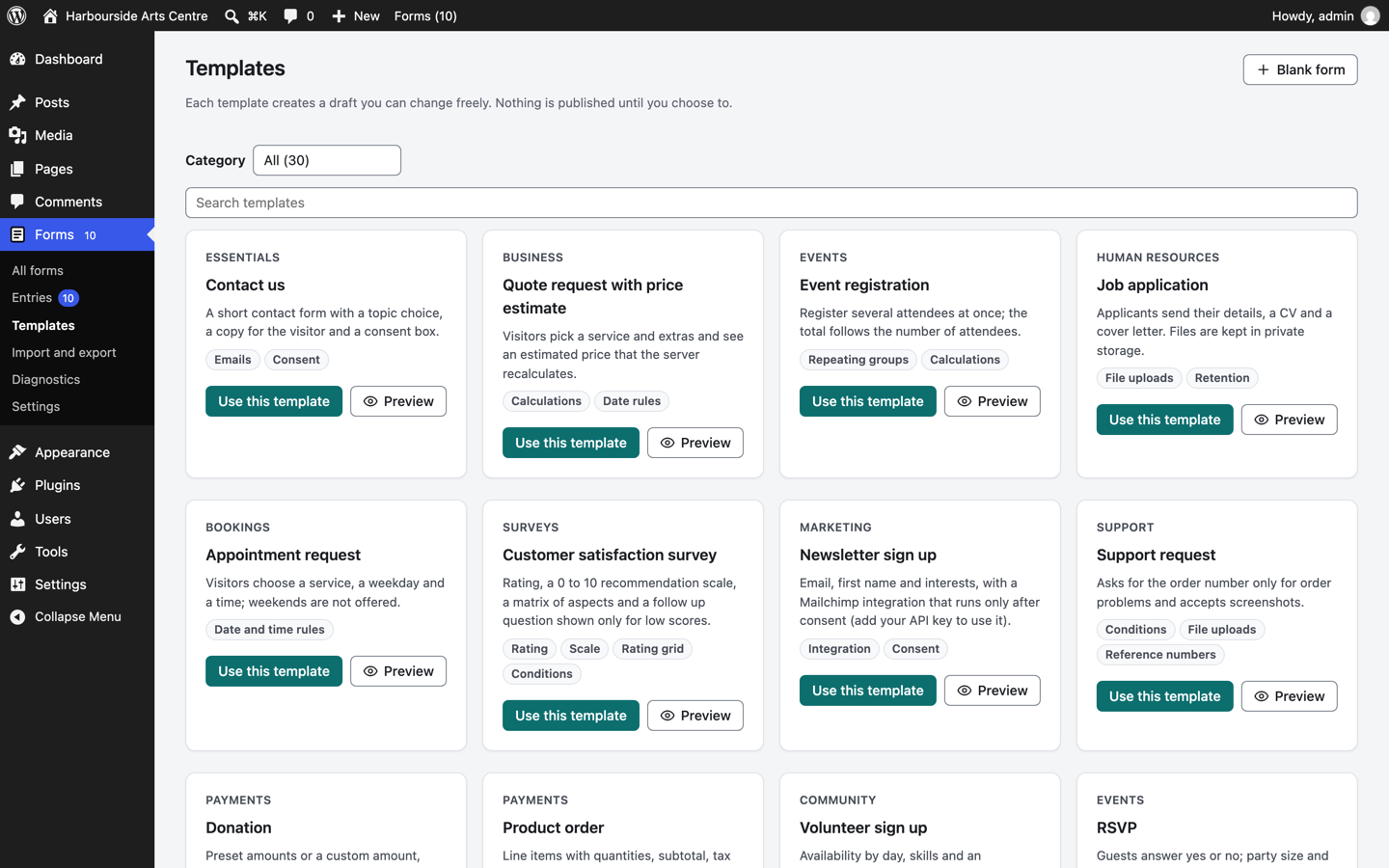
- Give it a name and choose Create a blank form, or Start from a template to begin with one of 30 ready forms (contact, quote, booking, registration, job application, surveys, payments and more).
- The builder opens. Add fields from the Add panel on the left by clicking them (they go after the selected element) or by dragging them onto the form.
- Select any element to change it in the panel on the right.
- Your work saves itself as a draft every few seconds. Visitors see nothing until you publish.
- Select Preview to try the draft in a new tab. Entries sent from the preview are marked as test entries and send no emails.
- Select Publish. If something must be fixed first (a field without a label, a formula that cannot work, an email without a recipient), the builder lists it and takes you to the element.
Add the form to a page
The first time you publish a form, the builder shows its shortcode and offers Create a draft page with this form. The page stays a draft until you publish it, so you can check it first. Other ways:
- Block editor: add the Flavonto Form block and choose the form.
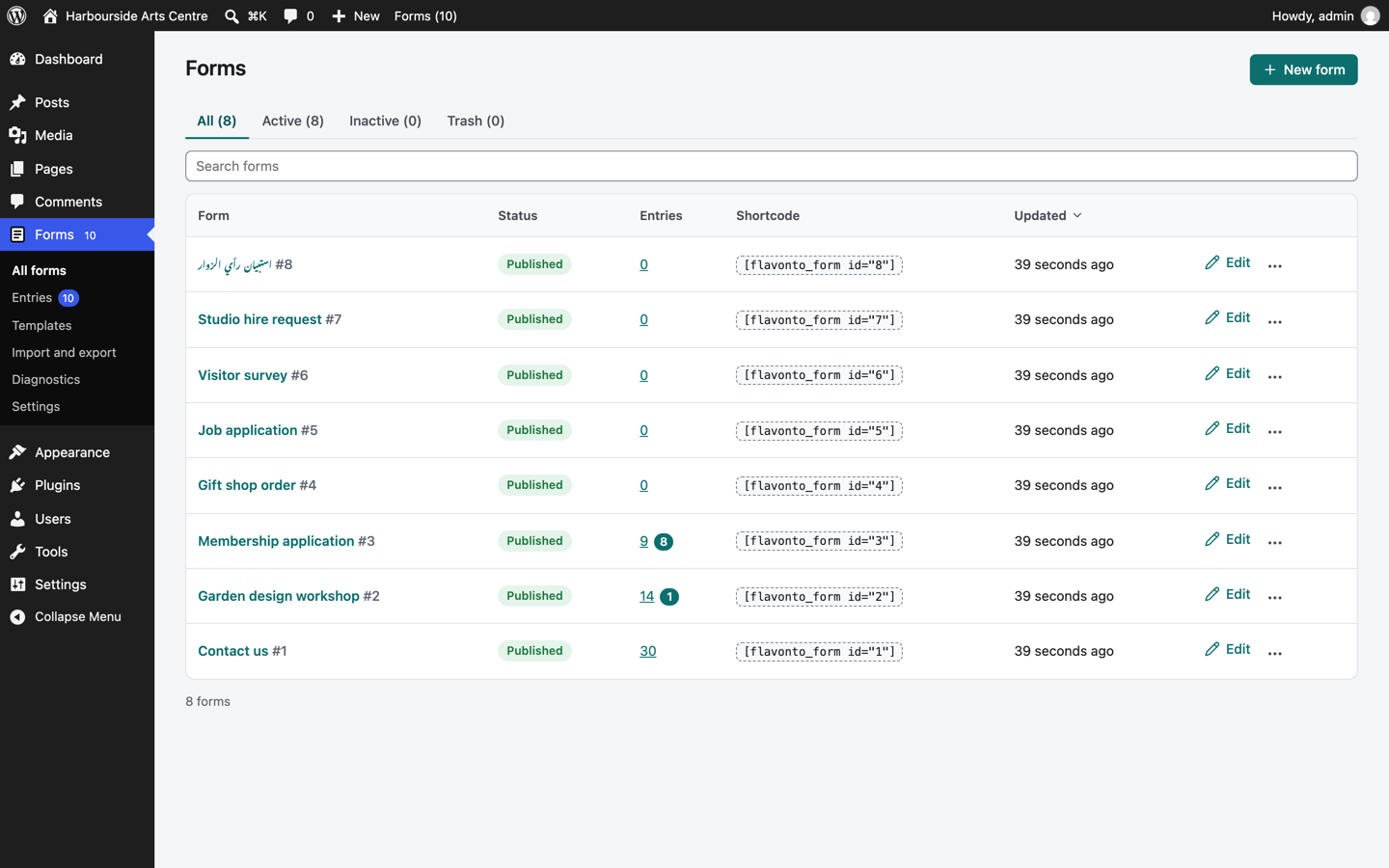
- Shortcode: copy the shortcode from the forms list, for example
[flavonto_form id="3"], and paste it anywhere shortcodes work. - Elementor, WPBakery, widgets, popups and PHP: see Embedding forms.
Where entries go
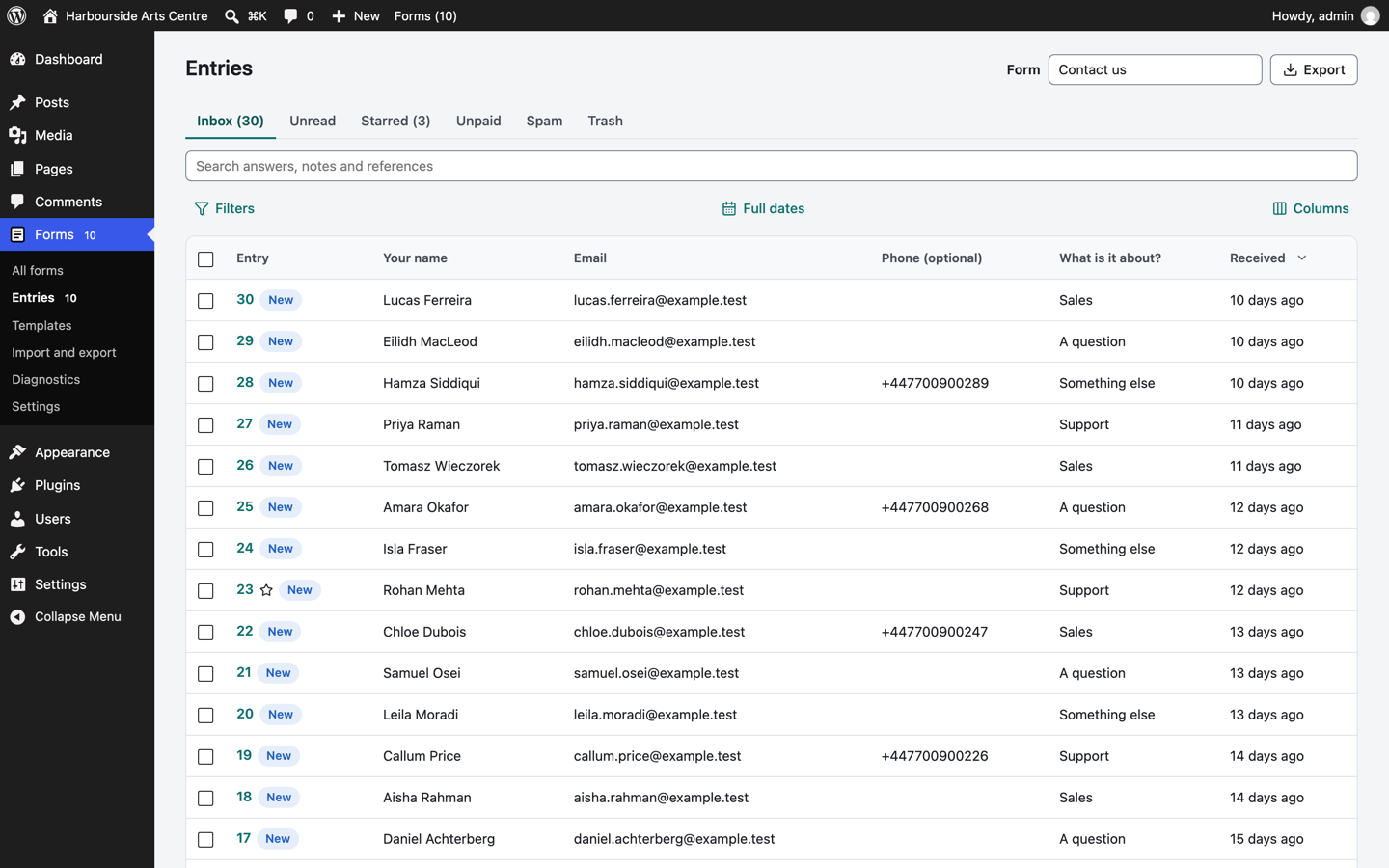
Every submission is stored in Forms, Entries before anything else happens. If an email or an integration fails, the entry is still there, and its timeline says what went wrong and lets you try again. See Entries.
Next steps
- The builder explains every panel and keyboard shortcut.
- Emails covers notifications to your team and copies to visitors.
- Troubleshooting lists the common problems on shared hosting and how to fix them.