Building forms
The builder
Library, canvas, outline, inspector, drafts, versions, previews and keyboard shortcuts.
The builder has a toolbar along the top and three areas below it: the library and outline on the left, the canvas in the middle, and the inspector on the right. On screens narrower than about 1100 pixels the inspector moves below the canvas.
Toolbar
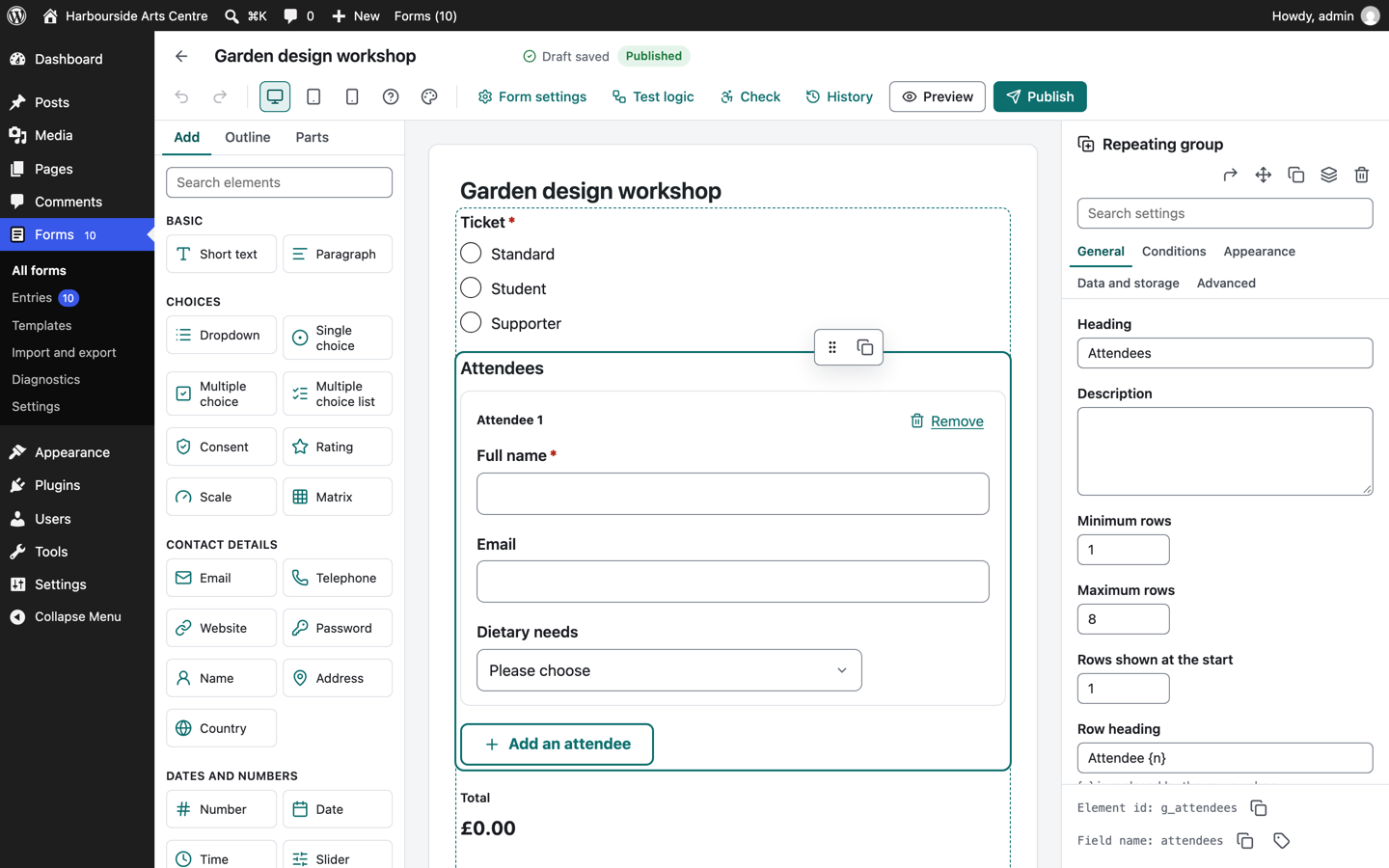
| Control | What it does |
|---|---|
| Back | Returns to the forms list. Your draft is already saved. |
| Form title | The name used in the dashboard. It is also the title shown above the form unless you change that in the form settings. |
| Save status | "Draft saved", "Unsaved changes", "Saving", "Not saved" or "Changed by someone else". |
| Publish status | "Draft, not published yet" until the first publish, then "Published", or "Unpublished changes" when the draft differs from what visitors see. |
| Undo and redo | Step back and forward through your changes, including deleted elements. Typing in one box counts as one change. |
| Desktop, tablet, phone | Shows the canvas at that width so you can check column layouts. |
| Test logic | Opens the logic tester (see Conditional logic). |
| Check | Lists problems and things to check: missing labels, duplicate field names, choices without values, formulas that cannot work, conditions that loop, emails without recipients, payment settings. |
| History | Every saved draft, autosave and published version. Compare lists what was added, removed and changed between a version and the current draft. Restore as draft copies a version back into the draft. |
| Preview | Opens the current draft in a new tab. |
| Publish | Makes the draft the version visitors see. |
Adding elements
The Add tab lists every element in groups: Basic, Choices, Contact details, Dates and numbers, Layout, Advanced, Payment and Spam protection. Type in the search box to filter, for example "phone" finds Telephone.
- Click an element to add it after the selected element (or at the end of the current step).
- Drag an element onto the canvas. A line shows where it will land: above or below a field, inside a section, column or repeating group, or on a step's tab to move it to that step. The canvas scrolls when you drag near its edge.
- On a touch screen, press and hold an element for a moment, then drag. A quick swipe scrolls the list instead.
The first time you open the builder, a short tour of four steps points out the library, the canvas, the settings and publishing. Skip the tour closes it; it is not shown again.
The canvas
The canvas shows the form with its real markup and styles. Click an element to select it; the selected element has an outline and a small toolbar to make it required, duplicate, remove or drag it. Double click a label (or a heading or button text) to rename it in place; Enter saves and Escape cancels. Steps appear as tabs above the canvas. Add a step at the bottom adds a new step.
Canvas background chooses what the form sits on while you build: white, light grey, dark, or your site's own background, so you can check contrast against the page it will be on.
The canvas is a picture of the form, so its fields do not take typing or keyboard focus. Use the Outline tab to reach every element with the keyboard.
The outline
The Outline tab lists every step, section, column and field as a tree.
| Key | Action |
|---|---|
| Up and down arrows | Move the selection |
| Right and left arrows | Open and close a step, section or group |
| Alt with up or down arrow | Move the selected element up or down |
| Alt with right arrow | Move it into the section or group just above |
| Alt with left arrow | Move it out of its section or group |
| Delete or Backspace | Remove the selected element (you are asked first, and you can undo) |
Each move is announced to screen readers. Open and closed sections are remembered in your browser.
You can also drag items in the outline. Drop on the middle of a step, section, column or repeating group to put the element inside it. The Move menu in an element's settings does the same without dragging: up, down, into the section above, out of its section, or to another step.
The inspector
With nothing selected, the inspector shows the Form settings in tabs: Form settings, Emails, After sending, Integrations and Payment. With an element selected, it shows that element's settings in groups such as General, Choices, Validation, Conditions, Appearance, Data and storage, Advanced and Messages. The search box at the top finds a setting by its name or help text.
At the bottom of each element's settings you see its element id and field name, each with a copy button, and a button that copies its merge tag. The field name is used in merge tags (for example {field:email}), in exports and in integrations. New fields get a name from their label when the draft is saved; you can change it in Data and storage.
Settings that follow a form default (for example the label position or the error message style) say so under the control. When you change one for a single element, the note shows the form default and Use the form default puts it back. Some settings link to the guide page that explains them.
In Form settings, General, Name in the forms list and Internal note are for your team only: the forms list shows them, visitors never do.
Drafts, publishing and versions
- The builder saves a draft a few seconds after each change and when you press Ctrl+S (Cmd+S on a Mac).
- Visitors always see the published version. Publishing creates a new version; older versions stay in History.
- Every entry remembers the version it was sent with, so editing a form never changes how old entries are shown.
Saved parts
A part is a group of elements saved for reuse, such as an address block or a consent section. Select an element (a section works well) and choose Save as a part in its settings. The Parts tab lists your parts:
- Insert a copy adds an independent copy you can change freely.
- Insert shared adds the part itself. Editing the part changes it for every form that shares it once those forms are published again; Publish the forms that share it does that for you (forms whose drafts have other unpublished changes are skipped and listed).
Deleting a part leaves the copies in forms alone; forms that share it keep the elements they had when last published.
Working with others
When someone else opens a form you are editing, both of you see a notice with the other person's name. If you both save, the second save is stopped and you choose between loading their version, keeping yours and overwriting theirs, or Save mine as a new form.
When the connection drops
If a draft cannot be saved (for example you are offline), the builder says so and keeps your changes in this browser. They are saved when the connection returns. If you close the page first, the next time you open the form you are offered Restore them or Discard them. Leaving the builder with unsaved changes asks you first.
The forms list
Select a column heading (Form, Entries, Updated) to sort the list; your choice is remembered in your browser. The Forms menu in the admin bar lists the five most recently changed forms, and the "Recent form entries" dashboard widget shows the unread entries of each form first.
Keyboard shortcuts
| Keys | Action |
|---|---|
| Ctrl+S or Cmd+S | Save the draft now |
| Ctrl+Z or Cmd+Z | Undo (when you are not typing in a box) |
| Ctrl+Shift+Z or Cmd+Shift+Z | Redo |
| Ctrl+D or Cmd+D | Duplicate the selected element |
| Escape | Close a dialog |