After sending
Payments
One time payments through Stripe Checkout and PayPal, test mode, webhooks and payment states.
Flavonto Forms takes one time payments on the payment provider's own page: Stripe Checkout or PayPal. Card details never pass through your site. Subscriptions and recurring payments are not included in this version.
How a payment works
- The visitor fills in the form and selects Send.
- The entry is stored first, marked as unpaid.
- The visitor goes to Stripe or PayPal to pay.
- When the provider confirms the payment (on the visitor's return, by webhook, or by a scheduled check), the entry becomes paid, "payment confirmed" emails go out and the confirmation is shown.
- If the visitor cancels, they come back to the form page with a message and a link to try again. The entry stays unpaid.
A payment never moves backwards: a late or repeated message from the provider cannot turn a paid entry back to unpaid.
Setting up
- In Settings, Payments, keep Test mode on.
- Enter the Stripe test secret key (it starts with
sk_test_; a restricted key with write access to Checkout Sessions also works), and/or the PayPal sandbox client id and secret. Secrets are stored encrypted and are never shown again. No publishable key is needed, because the payment page is hosted by Stripe. - Copy the webhook addresses shown on that screen into the Stripe and PayPal dashboards, and paste the signing secret (Stripe) or webhook id (PayPal) back. Without webhooks, payments are still confirmed when the visitor returns and by a scheduled check, but late confirmations take longer.
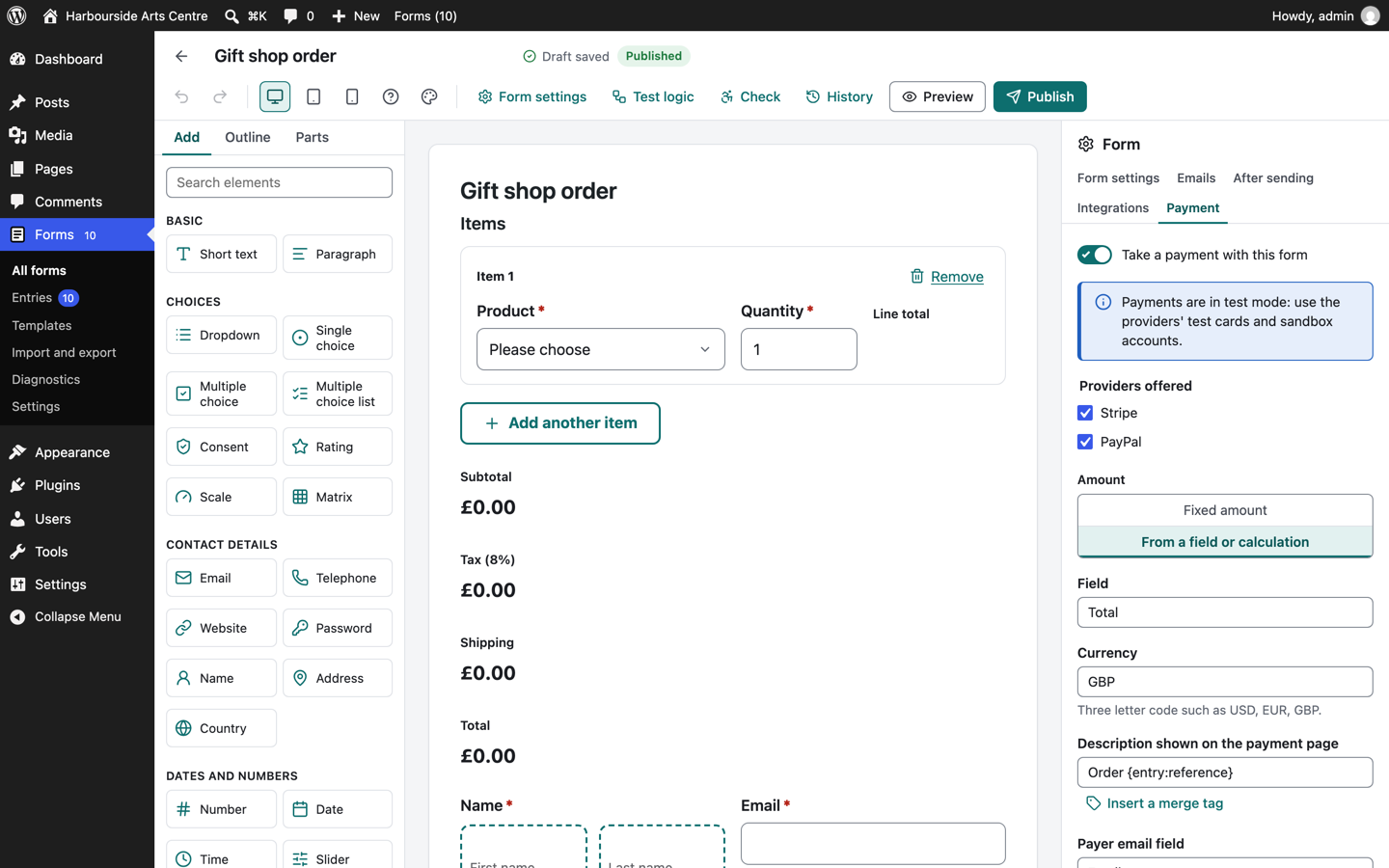
- In the form, open the Payment tab, turn payments on and choose:
- which providers to offer (with both, the visitor chooses),
- the amount: a fixed amount, or a calculation field (see Calculations),
- the currency,
- the description shown on the payment page (merge tags allowed),
- the fields that hold the payer's email and name,
- optional minimum and maximum amounts,
- an optional condition, for example only when "Pay now" is chosen.
- Add a Payment field where the amount should be shown and, with two providers, where the visitor chooses.
- Test with the providers' test cards and sandbox accounts until a full payment, a cancelled payment and a failed card all behave as you expect. Then switch Test mode off and enter the live keys.
The amount charged is always calculated on the server from the submitted answers.
Entries and payments
The entries list shows a payment state on each entry: pending, paid, failed or refunded, and the Unpaid view lists entries waiting for payment. On an entry, Check with the provider asks Stripe or PayPal for the current state. Refunds are made in the provider's dashboard; the entry shows the refund when the provider reports it.
Entry limits can count paid entries only (Schedule and limits group in the form settings), useful for events with a fixed number of places.
Emails about payments
Emails can be sent when an entry is sent, when its payment is confirmed or when it fails (the When setting of an email). {payment:amount} and {payment:status} insert the payment details.