Building forms
Layout, steps and saving for later
Columns, sections, repeating groups, steps with a progress bar, and save and continue later.
Columns
Add Columns from the Layout group. Choose the number of columns, then drag fields into each column. Each column has a width out of 12, so a two column row can be 6 and 6, or 8 and 4.
Stack the columns on decides when columns become one below the other: on phones (the default), on tablets and phones, or never. Any field can also have its own width for desktop, tablet and phone in its Appearance settings.
Sections
A Section groups related fields under a heading, for example "Your details" and "Your order". Sections can be plain, bordered or shown as a card, and can be collapsible. Hiding a section with a condition hides everything inside it, and hidden answers are not stored or emailed.
Repeating groups
A Repeating group lets visitors add rows of the same fields, for example one row per guest or per item ordered. You set the minimum, maximum and starting number of rows, the row heading ({n} becomes the row number) and the text of the add and remove buttons. Removing a row moves keyboard focus to a sensible place and screen readers hear which row was removed.
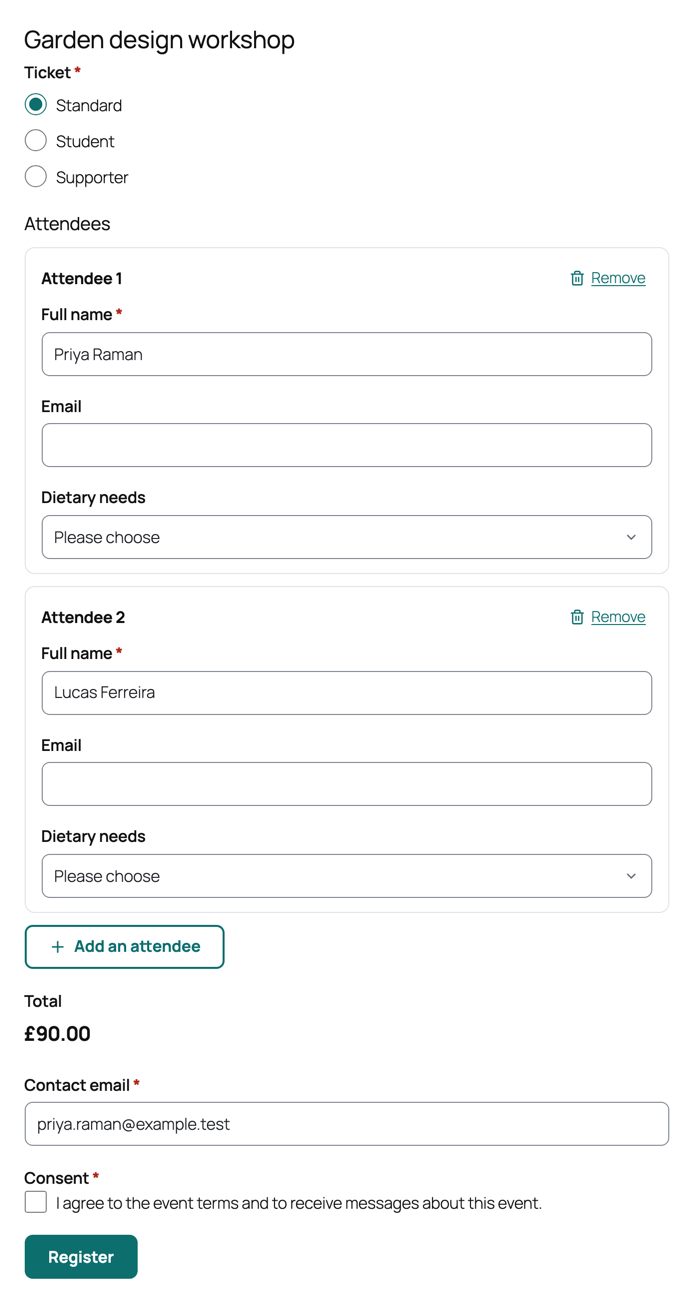
In entries and emails, each row is listed with its number. Calculations can use rows with sum(), count() and similar functions (see Calculations).
Steps
Select Add a step below the canvas to split the form into steps. Each step has a title, an optional description, and its own Next and Back button text. Steps can be skipped with a condition, for example skip "Company details" when the visitor is not a business.
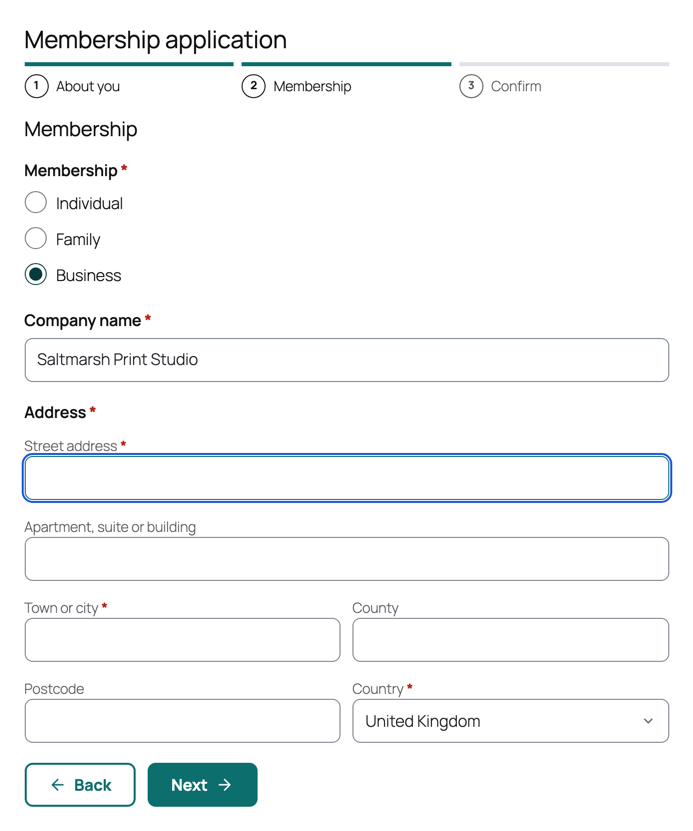
In the form settings you choose the progress indicator: a bar with the step count, a bar with a percentage, a list of step titles, or none. Answers are checked when the visitor selects Next, and problems are listed at the top of the step with links to each field.
Without JavaScript, all steps show on one page and the form still works.
Save and continue later
Turn on Let visitors save and continue later in the form settings (Save and resume group). A Save and continue later button appears next to the form's buttons. When a visitor uses it:
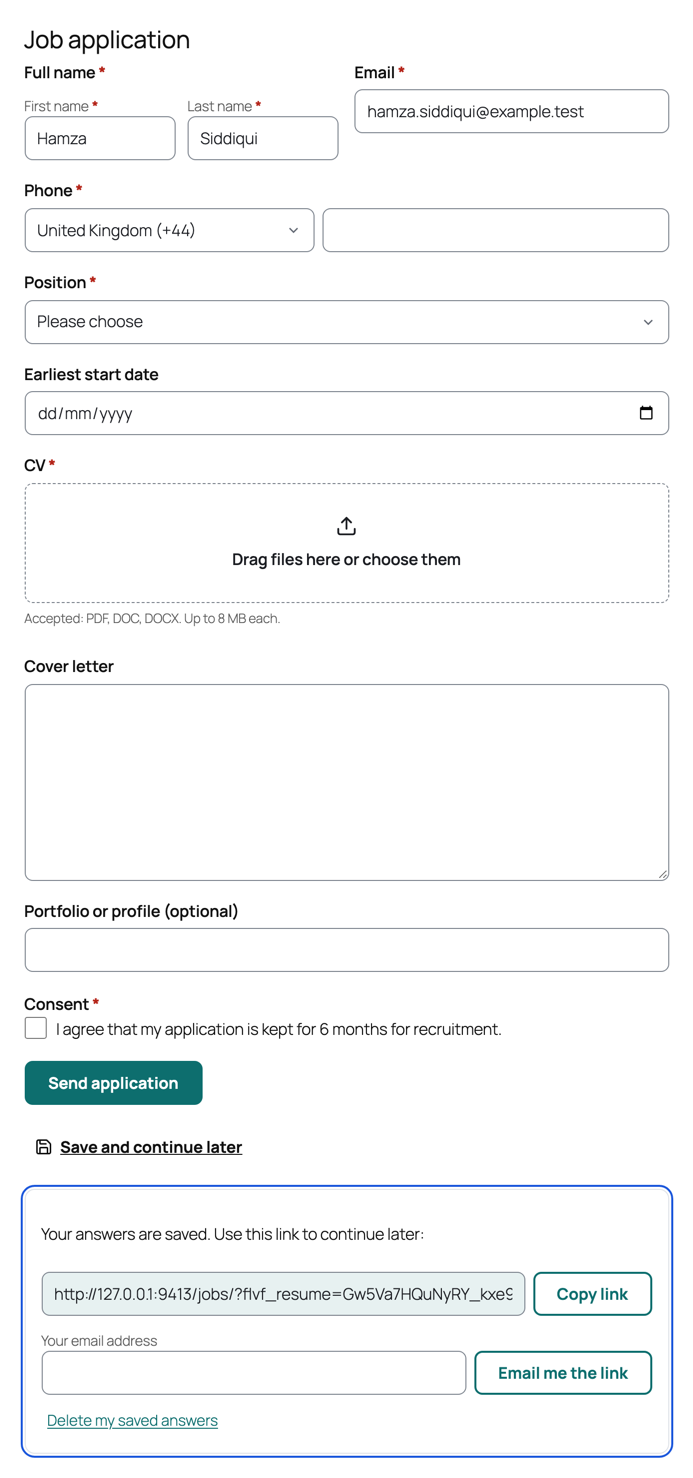
- Their answers are saved encrypted on your site.
- They get a private link to continue, and can have it emailed to them (you can turn the email option off).
- Opening the link restores the answers and the step they were on.
Saved drafts are deleted after the number of days you choose (30 by default) and when the form is sent. If you remove fields from the form while drafts are waiting, a visitor who resumes is told which answers no longer apply, by their labels. Passwords are never saved in a draft, and drawn signatures are only kept if you turn that on. Files the visitor uploaded before saving stay attached to the draft.
The link works like a password: anyone who has it can see and change the saved answers. It is long and random, only a fingerprint of it is stored, pages opened with it are never cached, and one connection can save at most 20 drafts an hour. Logged in visitors find their latest draft on the form without the link. If your site uses an analytics tool that records full page addresses, exclude the flvf_resume parameter there so saved links are not collected.
Inline and multi column labels
The form settings decide where labels sit: above the field, beside it on wide screens, or inside the field. Labels inside the field move above it when the visitor types, so the label is never lost. Sections and individual fields can override the form default.
"Same as" another field
Text, paragraph, email, telephone, name and address fields can offer a Same as box, for example "Same as billing address" on a delivery address. Choose the field to copy in Offer to copy another field (for addresses, Offer "Same as" another address) and, if you like, the box's text. When the visitor ticks it, the field is hidden and its answer is copied from the other field, in the browser for conditions and calculations, and again on the server when the form is sent, so the stored answer is always the copied one.